Technical Support
How to Fix “Unfortunately, CGDI K2 Has Stopped” Error?
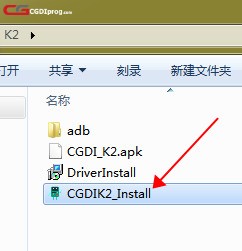
Step 1: Open the file “CGDIK2_Install.exe.” The tool will automatically begin installing the CGDI K2 software.
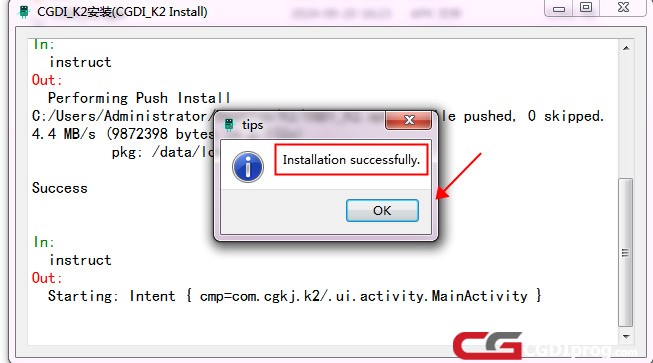
Step 2: Wait for the installation process to finish.
When completed successfully, you’ ll see a message that says “Installation successfully.”
Troubleshooting Tips:
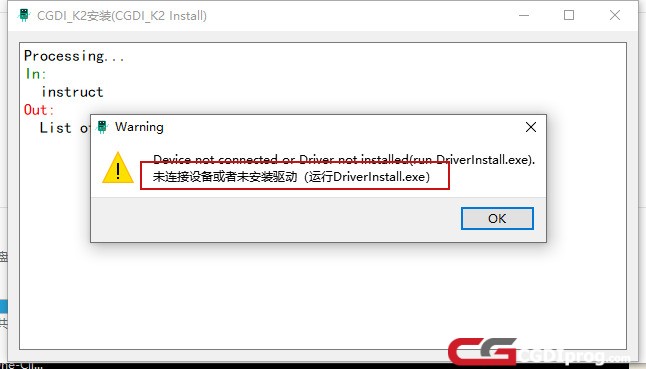
If you encounter an error message such as “Device not connected or driver not installed” after opening “CGDIK2_Install.exe,” please follow these additional steps:
1. Check Device Connection:
Make sure the CGDI K2 device is properly connected to your computer.
You can confirm this by opening “This PC” and looking for "CGDI K2" under connected devices.

2. Reinstall the Driver
A. If the device is connected but still not working: Disconnect the CGDI K2 from your computer.
B. Run “DriverInstall.exe” to install the required driver, confirm the installation when prompted.
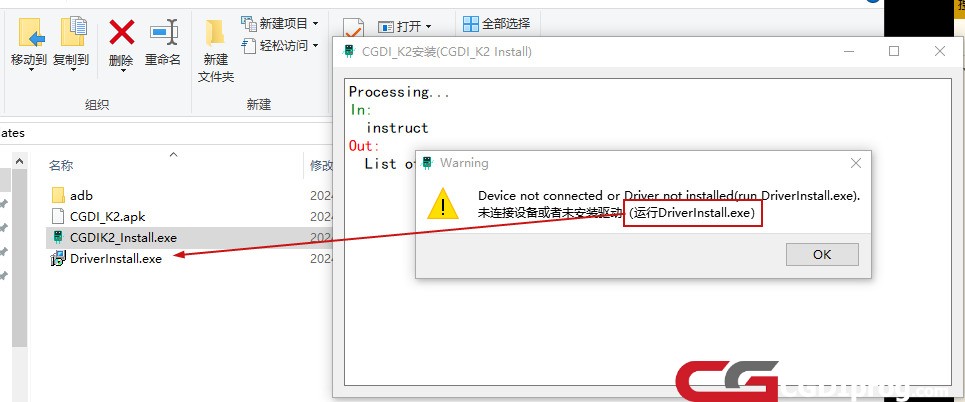
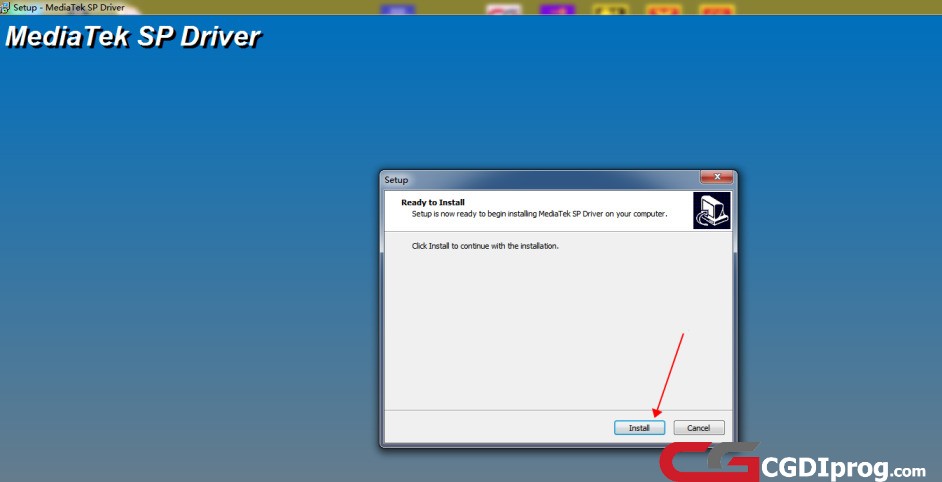
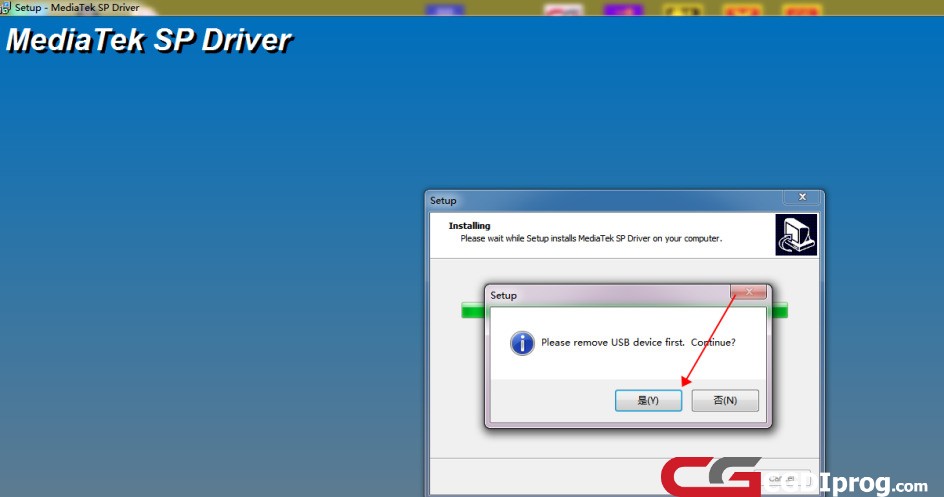
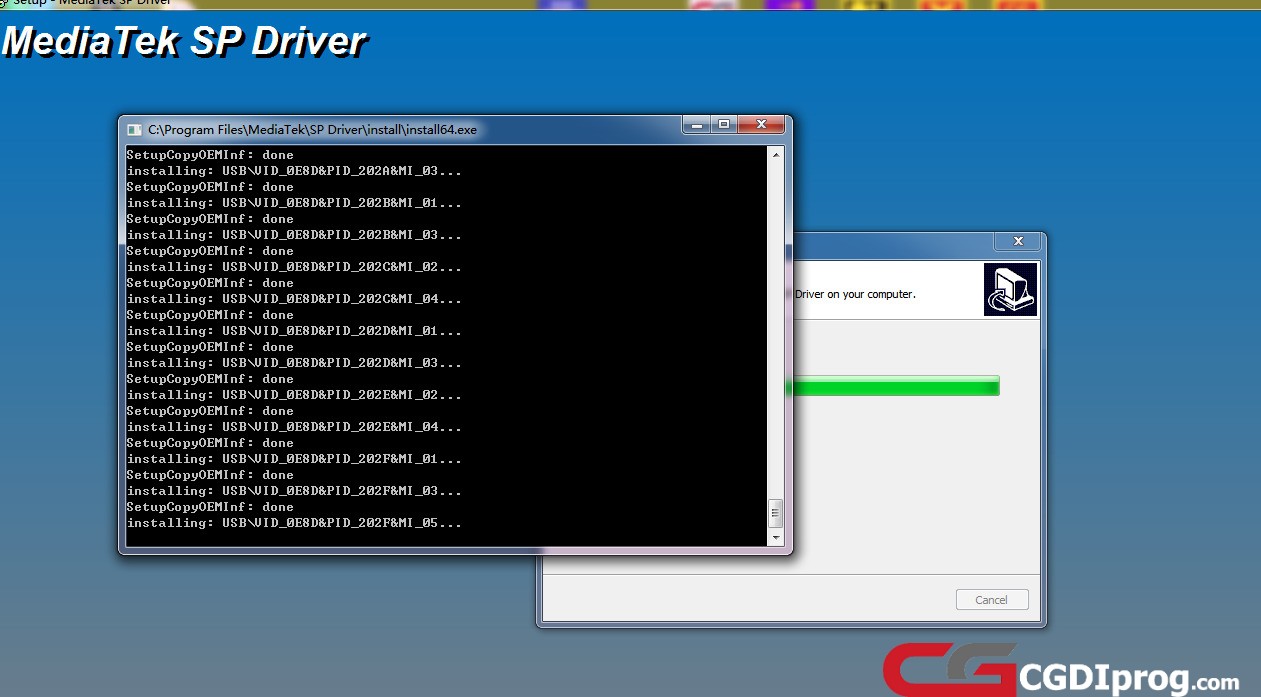
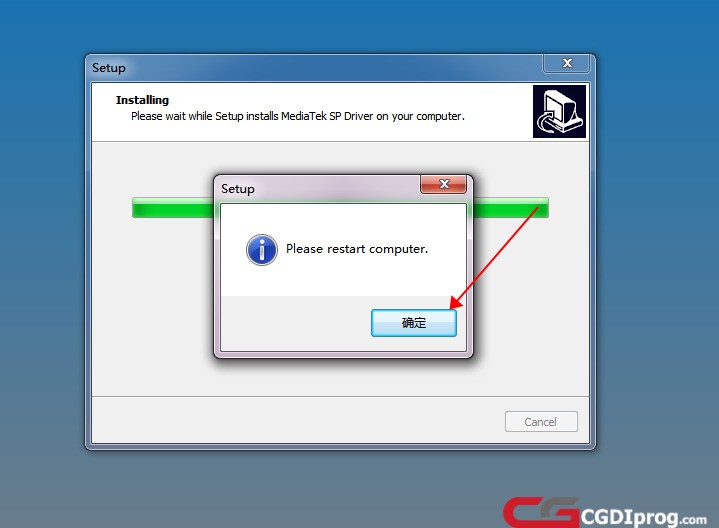
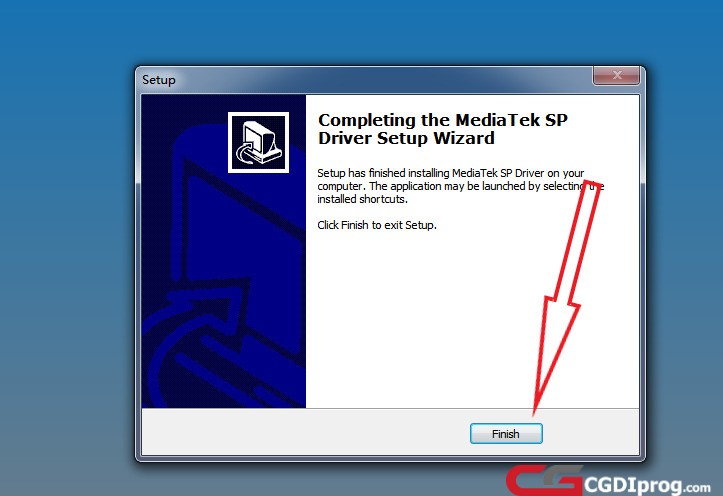
After installation is complete, click “Finish.”
3. Restart and Reinstall
Restart your computer, reconnect the CGDI K2 device, and repeat Steps 1 and 2.
Following these steps should resolve the “Unfortunately, CGDI K2 has stopped” error and get your device running normally again.